Welcome to the EVH Support
Here you can find helpful guides and links to official documentation to get started with the EVH and its various services.

One account, multiple services

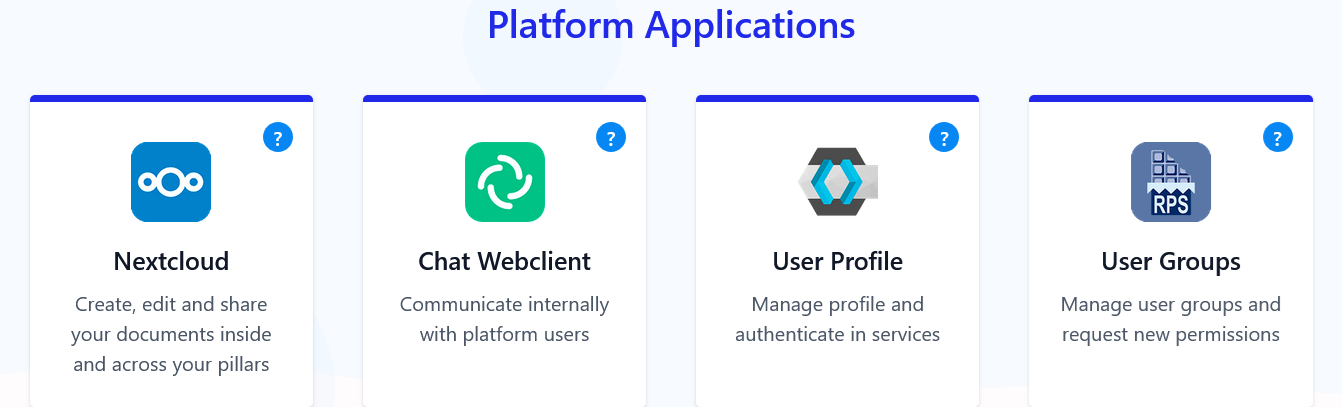
The access to all applications and services is provided through the the single sign-on (SSO) system. This means that you only need one account to access all the features available in the EVH ecosystem. Once you log in, you will have access to the Authentication and Authorization App which lets you access all the rest services. You can manage your account in the Profile App.

Apps and Services

The EVH provides access to various applications and services, including:

  • Chat Application: Communicate with your team in real-time using the Chat application.
  • Cloud Storage: Store and manage your files securely with the Cloud service.
  • Groups Management: Request access and manage your groups using the Groups interface tool.

The following Terms of Use govern the use of the EVH services.

The Data Privacy Policy outlines how we handle your data.

For legal disclosures, you may see the Imprint page.

Did not find the answers you were looking for?

We try to keep our support documentation up to date and comprehensive. However, if the problem you are facing is not covered here, please do not hesitate to reach out to our support team at support@europeanvaccineshub.org. We are here to help!

Portal Access

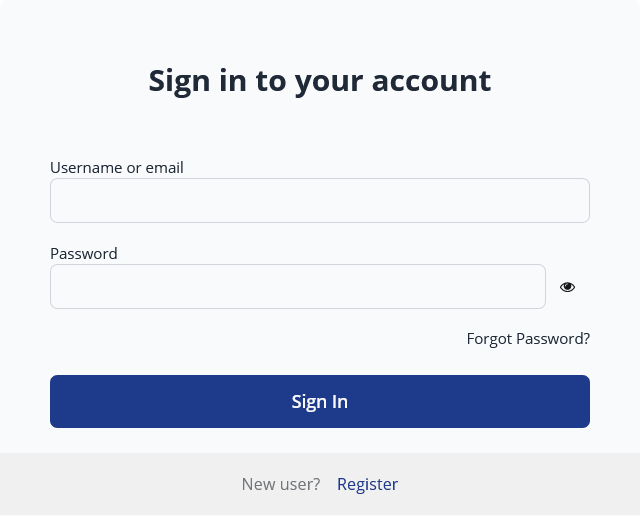
Users can access the login page in two ways:

  1. Using the login button in the header
    Click the Login button in the top right of the portal.
  1. Opening any web application in a browser
    Navigating to a webapp will also redirect you to the login page. For example, you will be asked to log in once you open the Chat application: EVH Chat

Logging In

Once you reach the login page:

  1. Enter your username and password.
  2. Click Login to access your account.

If you forgot your password, press the Forgot password? button and follow the instructions to reset it.

If you do not yet have an account, please refer to the Registration guide to create one.


Registration

If you do not yet have an account, you can register. Click the Register button on the login page.

Registration Form

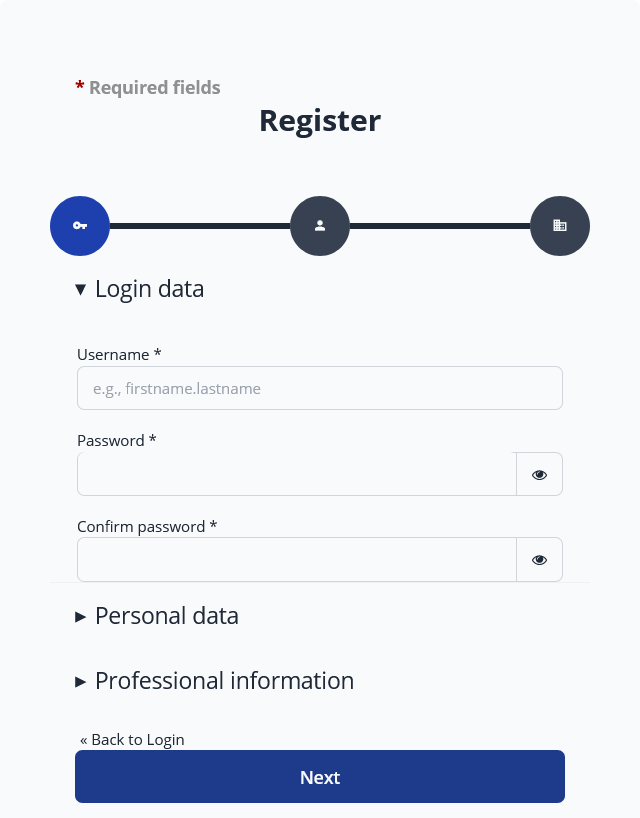
Fill in the registration form with the required information. Please ensure all mandatory fields are completed accurately. Pay attention to the following tips:

  • Your username must be unique and contain only letters, numbers or periods. Please note that the username cannot be changed after registration.
  • A password must contain at least 12 characters, including uppercase and lowercase letters, numbers, and special characters. Do not store your password in places accessible to others.
  • Use a valid business email address, as it will be used for account verification and communication. Accounts registered with temporary or disposable email services will be rejected as well as personal email addresses registered on popular free email providers.

When you submit the form, you may proceed to Email Verification.


Email Verification

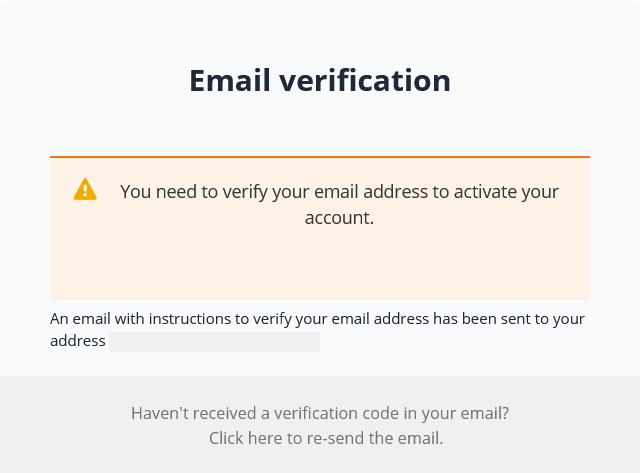
After completing the registration form, you will need to verify your email address to activate your account. You will receive an email with a confirmation link. This link is valid only for a limited time. If the link expires, you can log in with your username and password, which will generate a new email containing a fresh link.

  1. Agree to Terms of Use and Privacy Policy
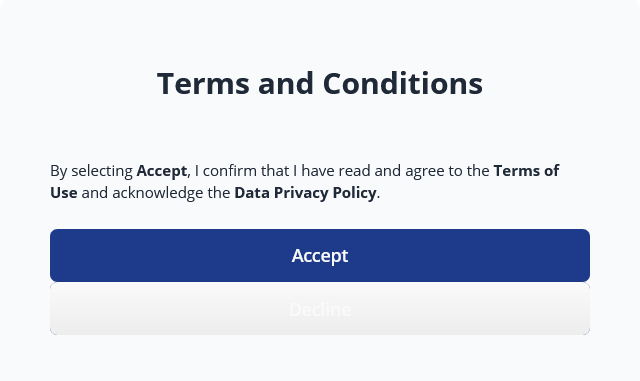
    After confirming your email, you will be asked to acknowledge that you agree to the Terms of Use and are aware of the Data Privacy Policy before accessing the portal.

If you have not received an email verification link after a reasonable amount of time or after multiple attempts, please contact the support team:

Email: support@europeanvaccineshub.org

Next Steps

After confirming your email, your registration will enter the next stage: manual account approval. For more information, please refer to the Account Approval guide.


Account Approval

After you have confirmed your email address, your registration enters the next stage: manual account approval.

What happens during approval

The information you provided during registration is reviewed by the portal management team. This ensures that all accounts meet the access requirements and that access is granted only to authorized users.

Duration of approval

The approval process typically takes a few working days. Most users receive a decision within two to three business days.

In periods of higher workload, it may take slightly longer.

If approval takes longer than five working days

If you have not received an approval decision after five working days, please contact the support team:

Email: support@europeanvaccineshub.org

After approval

Once your account is approved, you can log in to the portal using your username and password and access the available services.


Profile Management

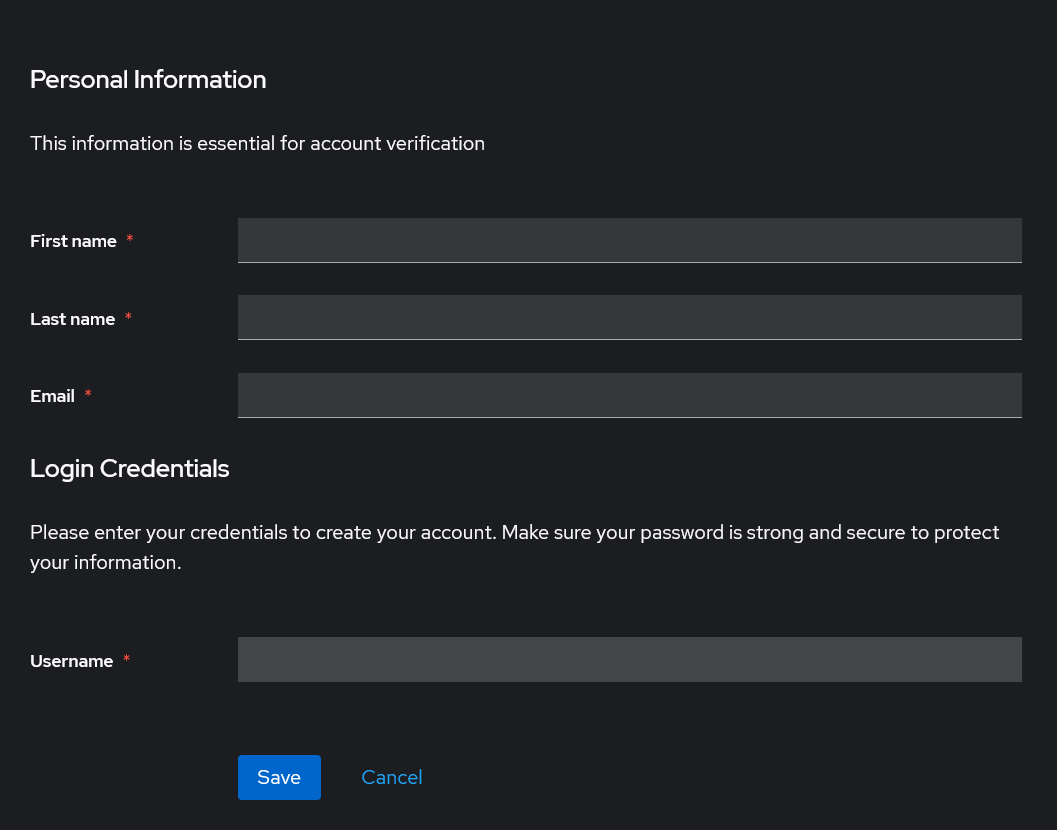
You can review and update your personal information at any time by opening your profile page:

Link: https://accounts.europeanvaccineshub.org/realms/evh/account

This page allows you to edit your name and other personal details associated with your account.

Changing Your Email Address

If you update your email address, the system will send a confirmation link to the new address.
This link is valid for a limited period of time.

If the link expires before you use it, simply attempt to log in again with your username and password. A new confirmation email will be generated automatically.

If verification email is not received

If you have not received a verification email within a reasonable time after updating your email address, please check your spam or junk folder. If you still cannot find the email, contact the support team: support@europeanvaccineshub.org

Changing Your Password

You can change your password at any time.
Please ensure that your new password meets the minimum requirements:

  • at least 12 characters
  • contains at least one uppercase letter
  • contains at least one lowercase letter
  • contains at least one digit
  • contains at least one special character

Your password change takes effect immediately after saving the new value.

Please remember to store your password securely and avoid sharing it with others.


About Element Web Chat

The chat service in EVH is based on Element Web, a secure and feature-rich client built on the Matrix communication protocol.

This page provides a general orientation for new users and links to official documentation for more detailed guidance.

Before You Start

We strongly recommend you read the E2E Encryption guide before using the chat for private conversations.

Official Documentation

External Clients

More information about using external Matrix clients on desktop and mobile devices can be found in the External Clients guide.


End-to-End Encryption

Element uses end-to-end encryption (E2EE) to protect your private conversations.
This means that:

  • Messages are encrypted on your device.
  • Only devices that you have verified can decrypt them.
  • Even the administrators of EVH cannot decrypt your messages.

Encryption Keys and Security

To ensure that you do not lose access to encrypted conversations, Element requires you to create and store a Secure Message Recovery method (also known as the security key or recovery passphrase).

Guidance on how to create, store, and use your recovery key can be found in the official help article here.

And in the official user guide can be found here.

It is essential that you keep this key in a safe place.
If it is lost, there is no technical way to decrypt existing encrypted messages — not even system administrators can restore them.

Verifying Sessions and Accessing Encrypted Messages on Multiple Devices

You can access your encrypted messages on multiple devices — for example:

  • Element Web in your browser
  • Element Desktop application
  • Element mobile apps (iOS and Android)

For more detailed information on installing Element Desktop and mobile apps, please refer to External Clients guide.

To read encrypted messages on a new device, you will be asked to verify the new session using:

  • your stored recovery key, or
  • another already-verified session (e.g., your desktop app or mobile app)

To simplify future verifications

We strongly recommend installing Element Desktop or the mobile app to have a verified session available for future verifications. They can be downloaded here: Element download page


Rooms and spaces

Element Web organizes conversations into rooms and spaces:

  • Rooms are individual chat channels where users can send messages, share files, and collaborate. Rooms can be public or private.
  • Spaces are collections of related rooms, allowing users to group conversations by topic, project, or team.

In the EVH chat service, the rooms and spaces available to you depend on your account permissions and group memberships. For further information on groups structure and process of application for group membership, please refer to the Groups and Permissions guide.


External Client Applications

While EVH supports web access to the Chat app through your browser, you may also use external Matrix clients on your desktop or mobile device. These clients provide additional features such as notifications, offline access, and multiple account management.

We recommend using the official Element clients for the best compatibility and security.
The download page for Element clients can be found here.
The official Element user guide is available here.

Alternatively, we suggest trying other popular Matrix client named FluffyChat, which is available for both desktop and mobile platforms and can be downloaded from its official website here.

By using these official clients, you can stay in sync with your conversations across multiple devices.

Matrix Server Name

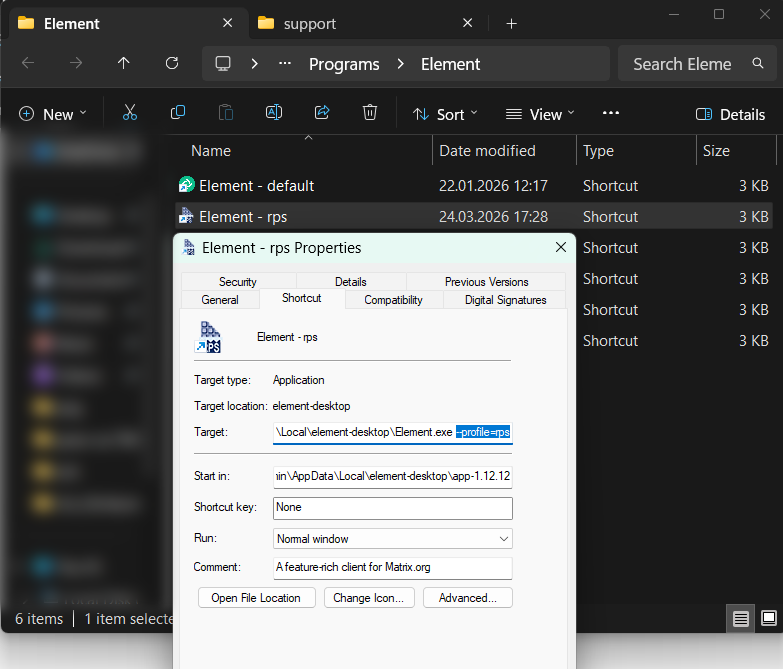
When configuring an external Matrix client, you will need to provide the Matrix server name for EVH chat service. Change the default server matrix.org to:

https://matrix.europeanvaccineshub.org

Editing Your Chat Profile

Profile Picture

You can update the photo used in the chat by opening the Settings section of Element Web and selecting a new profile picture.
Changes made here take effect immediately.

Display Name

Your display name in the chat is managed centrally.
It is automatically synchronized from your main profile in EVH and cannot be changed directly inside the chat. If you cahnge your display name in the chat, it will be overwritten during the next synchronization.

If you wish to update your name, please use the central profile page: https://accounts.europeanvaccineshub.org/realms/evh/account

During the next synchronization the chat will automatically reflect the updated name after the change is applied.

Username

Your chat username is generated automatically based on your central account username at the moment of registration.
It is used internally by the Matrix protocol to identify your account.

For technical and security reasons, the username cannot be changed after registration.

Profile Synchronization

The chat profile (display name and profile picture) is synchronized with your central account profile periodically. If the changes you made in your central profile are not reflected within a reasonable time, please contact the support team: support@europeanvaccineshub.org


About Nextcloud

Nextcloud is a secure, browser-based platform for storing, managing, and sharing files.
It provides access to your documents, images, and other data from any device and supports collaboration through shared folders and integrated applications.

In EVH, Nextcloud is used as a central storage location for project-related files and documentation.

Accessing Nextcloud

You can access your cloud files using any modern web browser. Simply open the cloud application from the portal dashboard, from the header menu, or navigate directly to the cloud service link: https://cloud.europeanvaccineshub.org

Official Documentation

To learn more about how to use Nextcloud, please refer to the official guide:

Nextcloud User Manual: https://docs.nextcloud.com/server/latest/user_manual/

There you may find instructions on file management, sharing, synchronization, and settings.

Help and Support

If you experience any issues accessing your files or using the cloud application, please contact the support team at support@europeanvaccineshub.org.


Group Folders in Nextcloud

Group folders in Nextcloud are shared directories that can be accessed by specific groups of users. This feature is useful for organizing files and ensuring that team members have access to the resources they need.

Groups synchronization

The users of the EVH may gain access to group folders in Nextcloud based on their membership in groups managed through the EVH Groups Interface. The guide on Groups and Permissions provides more information about how groups work in the EVH.

The groups from the EVH Groups Interface are automatically synchronized with the groups in the Nextcloud.

When a user is added to or removed from a group in the EVH Groups Interface, their access to the corresponding group folders in Nextcloud is automatically updated within the next synchronization cycle.

What if the group folder is not visible?

If you believe you should have access to a group folder but cannot see it in Nextcloud, please ensure that you are a member of the corresponding group. The list of available groups can be found in the EVH Groups Interface.

If you are a member of the group and still cannot access the folder, please contact the support team at support@europeanvaccineshub.org for assistance.


What is WebDAV?

WebDAV (Web Distributed Authoring and Versioning) is a protocol that allows users to manage and share files on a remote server. It extends the HTTP protocol, enabling users to create, change, and move documents on a server, typically a web server or cloud storage service.

In EVH, WebDAV can be used to facilitate file access and management for users through compatible clients without needing to use a web browser.

Using WebDAV Client with EVH Cloud

You can connect to your EVH Cloud storage using any WebDAV-compatible client. This allows you to access and manage your files directly from your desktop or mobile device.

Creating a WebDAV application password

To use a WebDAV client, you need to create an application password in your EVH Nextcloud account:

  1. Enter the EVH Nextcloud via the web interface.
  2. Click on your profile icon in the top right corner and select Settings.
  3. In the left sidebar, navigate to Security.
  4. Scroll down to the App Passwords section.
  5. Enter a name for the application password (e.g., “WebDAV Client”) and click Create new app password.
  6. Copy the generated password and store it securely, as you will need it to configure your WebDAV client.

Please note that you won’t be able to view this password again. However, you can always revoke it and create a new one if needed.

WebDAV URL

To connect your WebDAV client to EVH Cloud, use the following URL format:

https://cloud.europeanvaccineshub.org/remote.php/dav/files/USERNAME/

Replace USERNAME with your username in the EVH.

Official documentation

More information about using WebDAV with Nextcloud can be found in the official documentation:

Nextcloud WebDAV Documentation

About user groups and permissions

In EVH, every user belongs to one or more groups.
Groups determine what a user can access inside the platform.

By default, a newly registered and approved user has only very limited access to the platform’s resources.

What are resources?

These resources include:

To gain access to additional resources, a user must become a member of one or more groups.
This is managed through the Groups Interface available in the portal. The link to the Groups Interface can be found in the portal dashboard, header menu or directly here: EVH Groups


Types of Groups

In the EVH, groups are organized into three categories that define how membership is granted:

1. Default open group

Every successfully registered and approved user becomes a member of this group automatically.
No action is required from the user.
Users immediately gain access to all resources assigned to this group.

2. Open group

Every registered user may request membership in an open group.
Membership is granted automatically, without manual approval.
Once added, the user gains access to the group’s resources.

3. Closed group

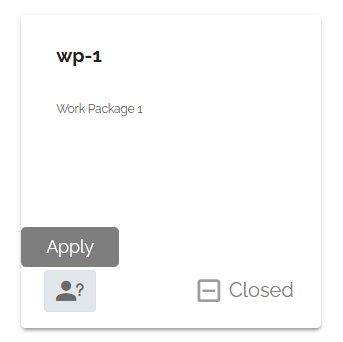
Every registered user may request membership in a closed group.
However, the application must first be manually reviewed and approved by a group manager.
Only after approval does the user gain access to the resources of the group.

Next steps

To learn how to request access to a closed group, continue to the next page:
Requesting Access to Closed Groups


Requesting Access to Open Groups

Open groups in the EVH allow any registered user to join without requiring manual approval. To request access to an open group, follow these steps:

  1. Navigate to the Groups Interface: EVH Groups
  2. Locate the open group you wish to join from the list of available groups.
  3. Press the request access button to join the group.

After joining, you will gain access to the resources associated with that group within the next synchronization cycle.

Requesting Access to Closed Groups

In the EVH, closed groups require manual approval from a group manager before you can join them. To request access to a closed group, follow these steps:

  1. Navigate to the Groups Interface: EVH Groups
  2. Locate the closed group you wish to join from the list of available groups.
  3. Press the request access button to submit your membership request.

After submitting your request, a group manager will review your application. You will be notified via email once your request has been approved or denied.

What if my request is denied?

If your request to join a closed group is denied, you may contact the group manager for further assistance or clarification regarding the decision.

What if my request is pending?

If your request to join a closed group is pending for an extended period, you may contact the group manager directly for an update on the status of your application. The contact information for the group manager can often be found in the group description within the Groups Interface. If you cannot reach the group manager, please contact the support team at support@europeanvaccineshub.org for assistance.